Windows desktop app

Your playlist,
on the machine you work on.

Livaro for Windows is a real desktop application, not a website in a frame. The same library as on your TV, live channels, films, series, folders and the programme guide, installed from a single file, with your progress synced across every device you activate.

Livaro provides no channels, movies or series, you use your own provider.
Desktop

Made for a keyboard and a big monitor

Browse with the mouse, control playback with the keyboard, and put the guide on a second monitor while something plays. The interface is the same one you know from the TV, so nothing has to be learned twice.
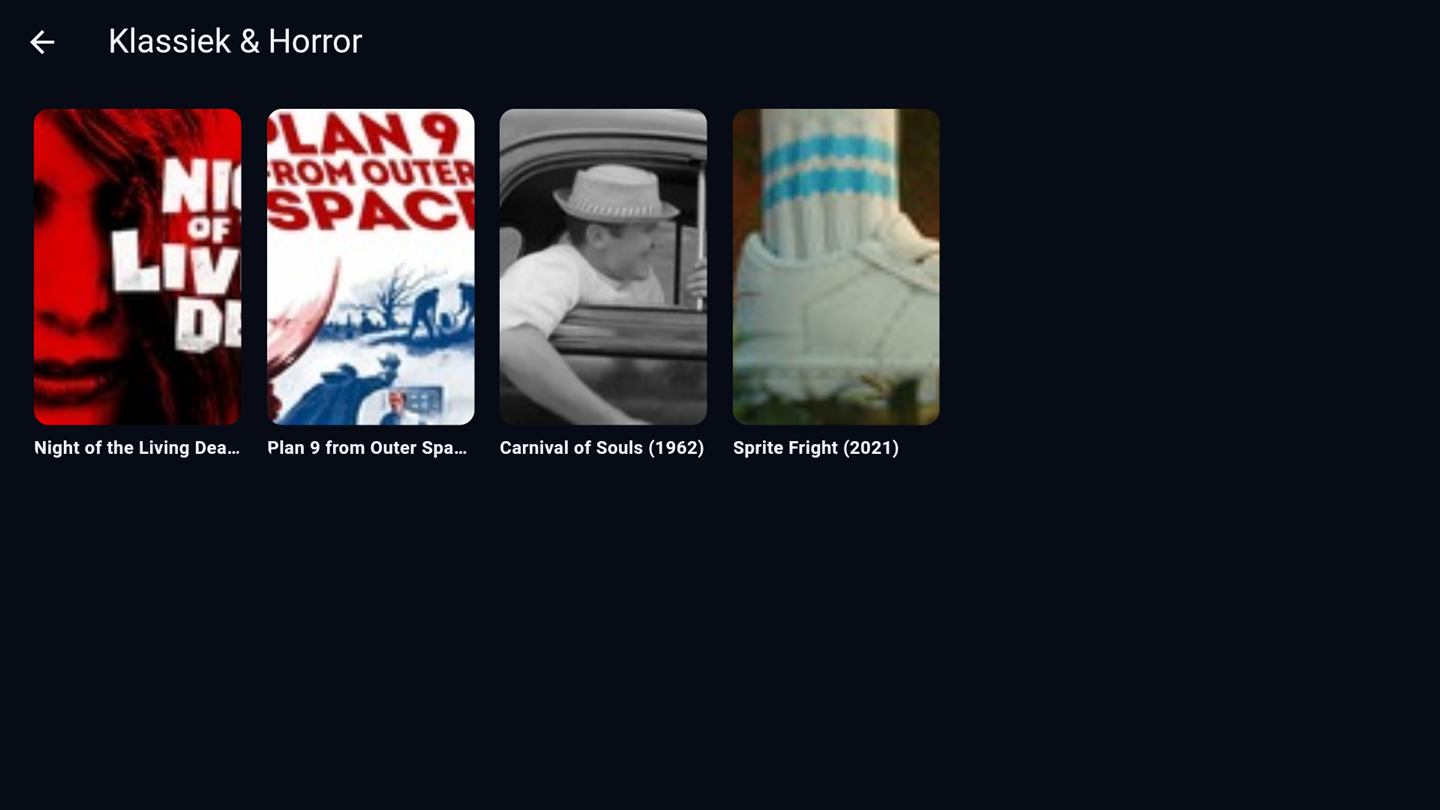
Livaro film library on Windows
Screenshots show royalty-free demo content (Blender Foundation films, CC-BY).
Requirements

What do I need to run Livaro Player on Windows?

A 64-bit installation of Windows 10 or Windows 11 and an internet connection. The installer is a single file of roughly 33 MB and finishes in well under a minute; the current build is version 1.0.83. Hardware demands are modest because decoding runs on your graphics chip: any machine from the last decade handles HD comfortably, and 4K depends more on your connection than on your processor.

Operating system

Windows 10 or 11, 64-bit. Older versions are not supported.

Download size

One installer of about 33 MB, no separate components to fetch afterwards.

Connection

Roughly 5 to 8 Mbit/s per HD stream, 15 to 25 Mbit/s for 4K, depending on your provider.

Activation

Per device, one-time, for life. The PC counts as its own activation next to your TV.

Getting started

How do I set up Livaro Player on a PC?

  1. Install Livaro Player and open it; the first screen shows a MAC address and a Device Key for this PC.
  2. On the same computer, open livaroplayer.com/upload in your browser.
  3. Enter the MAC and Device Key, then add your M3U link or Xtream Codes login.
  4. Back in the app, refresh. Your channels, films and series appear, sorted into folders with artwork.

On a PC this is quicker than on a television, because you can paste the link instead of typing it with a remote. If you already linked a playlist for another device, you still add it once for the PC: activations and playlists are tied to a device, while favourites and watch progress travel between them.

Desktop or browser

Should I use the desktop app or the web player?

Both play the same library from the same playlist. The web player asks nothing of you beyond a browser and is the right choice on a computer you do not own or cannot install software on. The desktop application is the better daily driver: it starts faster, keeps playing when you switch windows, uses your graphics chip for decoding rather than the browser's sandbox, and can sit on a second monitor while you work. If this is your own machine, install it.

FAQ

Windows questions

Can I use the same playlist on my PC and my TV?

Yes. Link your playlist once via livaroplayer.com/upload and every activated device, PC, TV, phone, shows the same library, with favourites and progress in sync.

Does it share my activation with the TV?

Activations are per device, so the PC counts as its own. Your playlist, favourites and progress sync between all activated devices.

Which Windows versions are supported?

Current 64-bit Windows 10 and 11. The installer is a single file and takes under a minute.

Ready to activate the player?

Activate your device in minutes: 12.99 euro for life, or 4.99 per year.

Activate device →