Daily use
Folders, the guide and film pages
Folders keep your library tidy
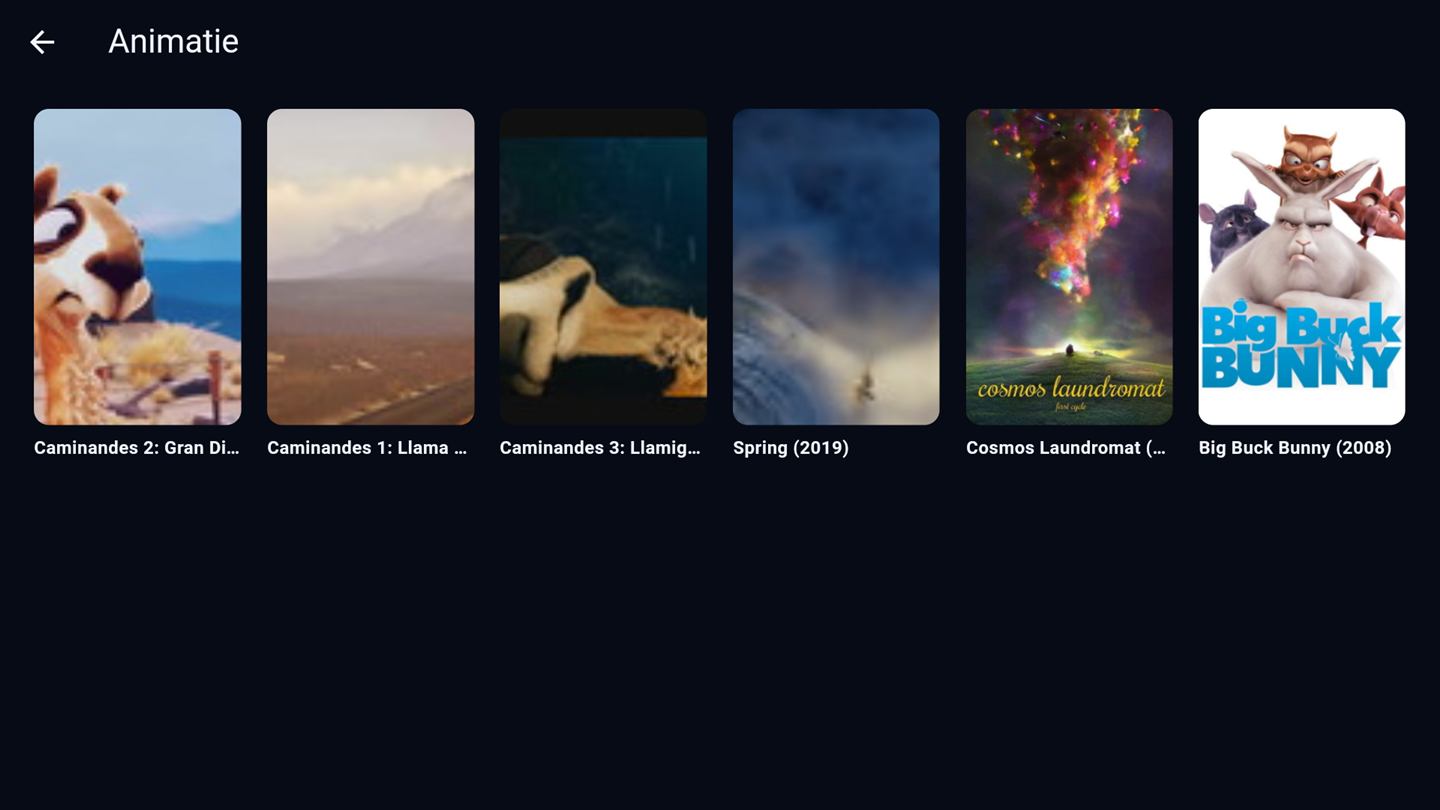
Films and series are sorted into genre folders automatically. Open Films or Series
and press left to open the folder drawer; hold OK on a folder to move it.
The programme guide
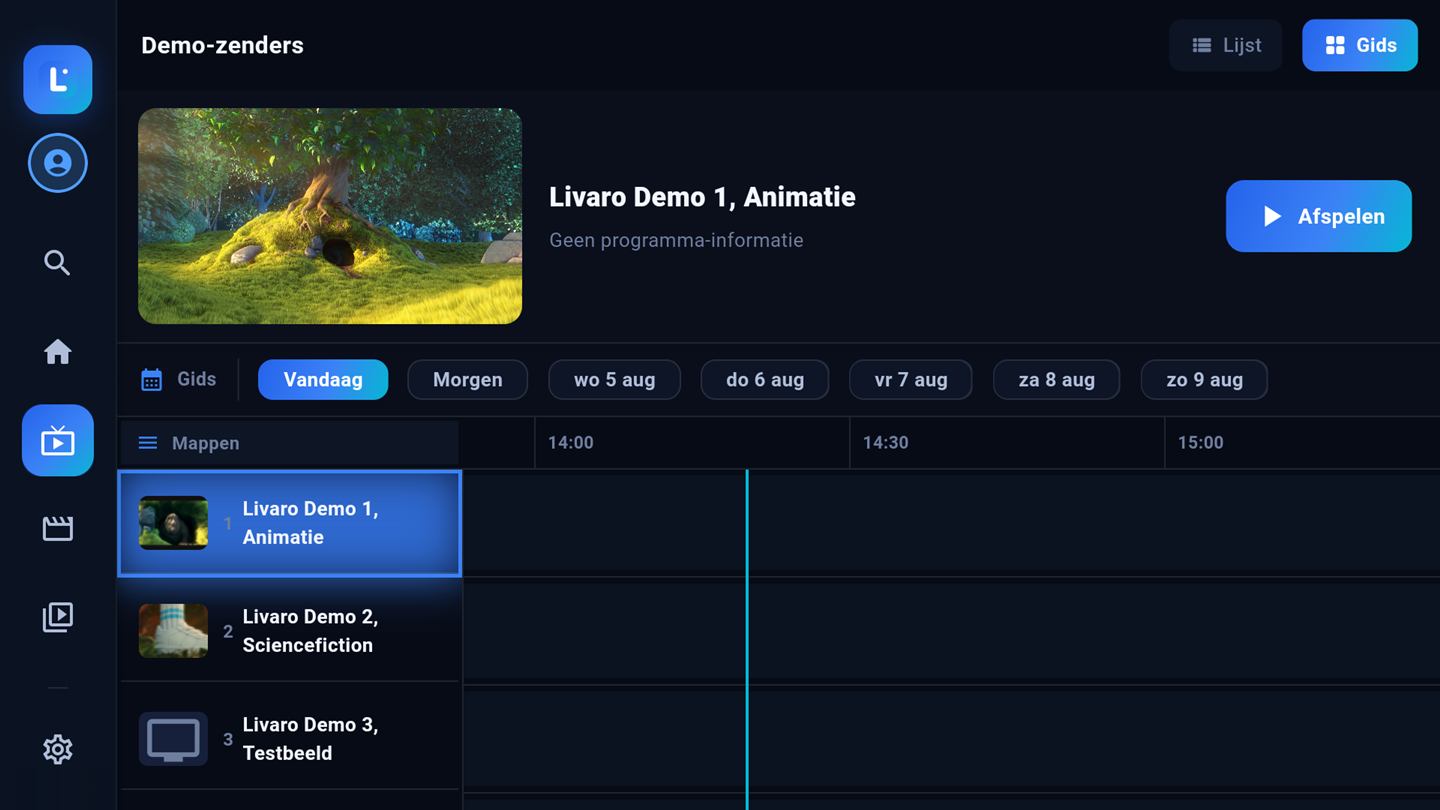
Live TV shows your channel folders next to a day-by-day guide. Use the day pills to
jump ahead, and press play on a channel to start watching.
Film pages
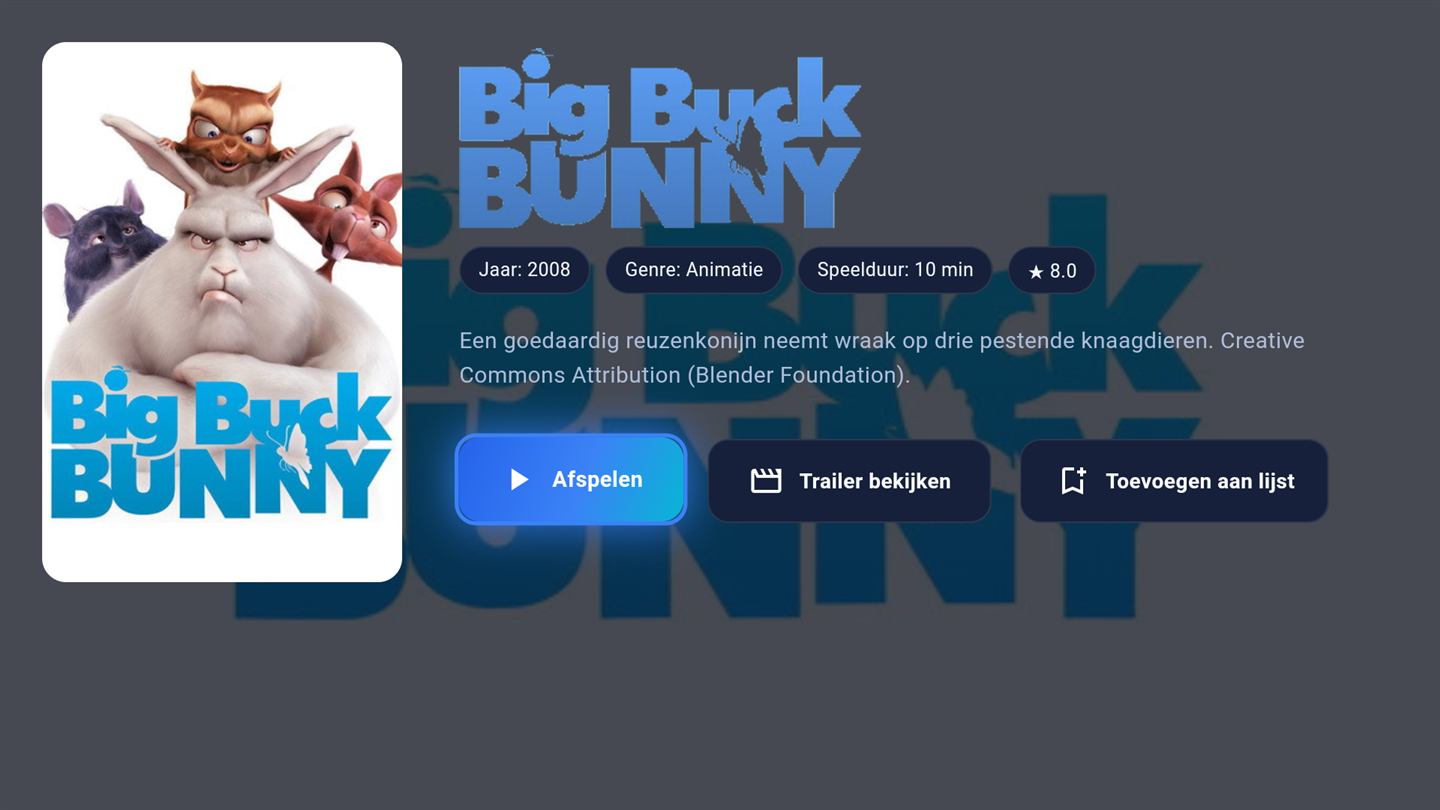
A film page shows the poster, year, genre, duration and a description, with play,
trailer and list buttons. Livaro remembers where you stopped.
Settings
The settings, explained
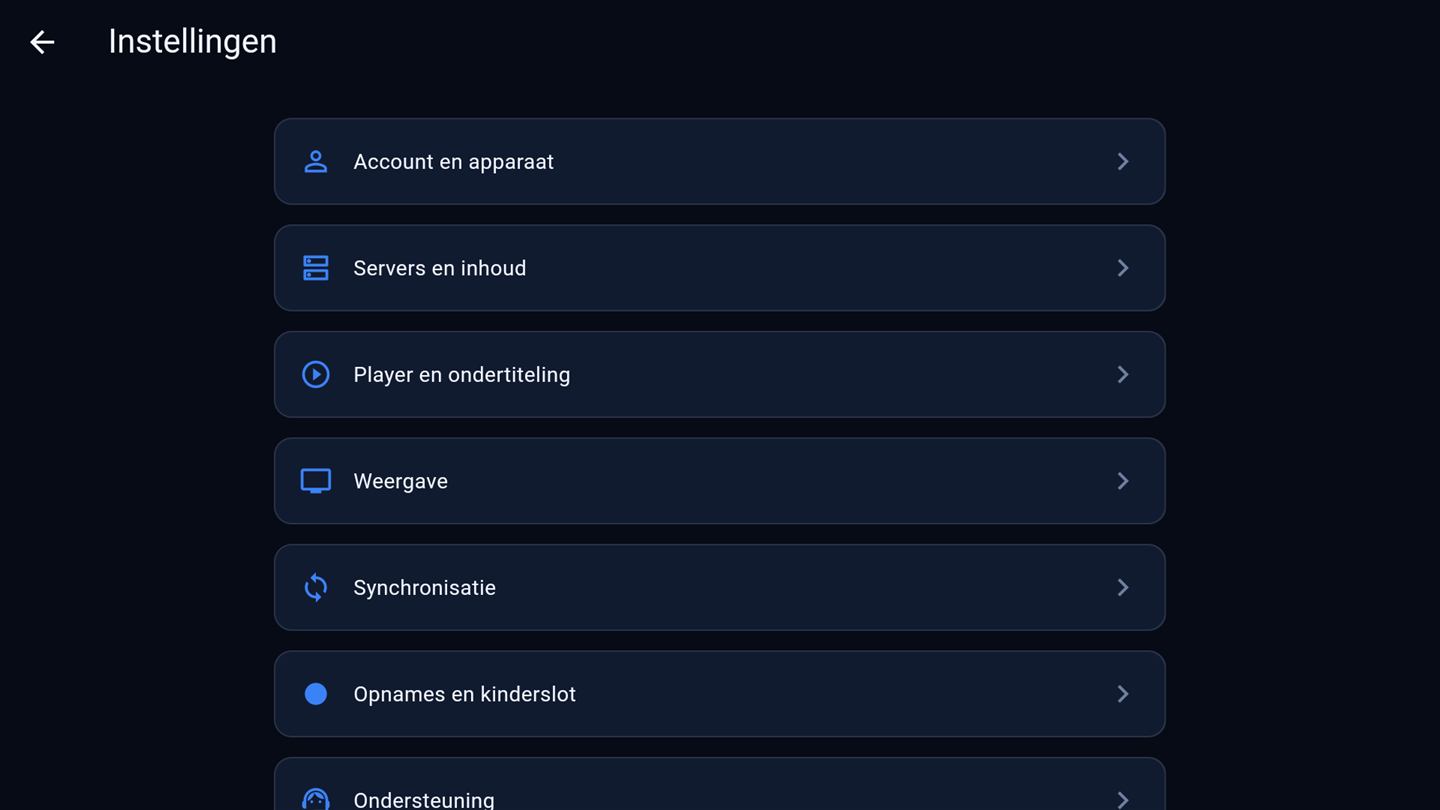
Everything configurable lives in one place. This is what each section does:
Account & device
Shows whether this device is activated and until when, plus the MAC address and Device Key you need when linking a playlist via the website. This is also where you switch the app language.
Servers & content
Manage your playlists: add a new M3U or Xtream server, refresh one after your provider made changes, remove one, or switch which playlist is active. Only one playlist is active at a time.
Player & subtitles
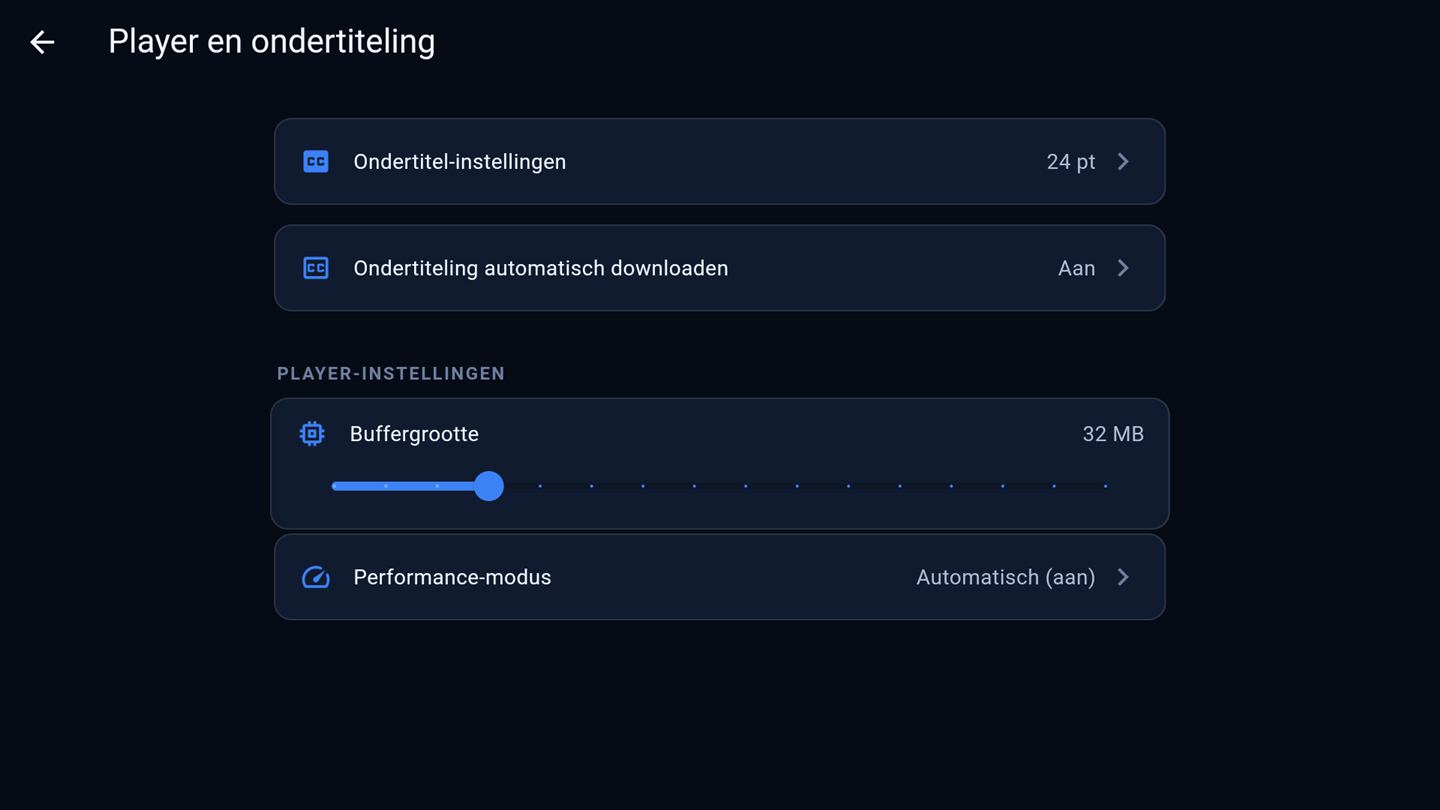
Subtitle style and size, automatic subtitle downloads, the playback buffer and the performance mode.
Display
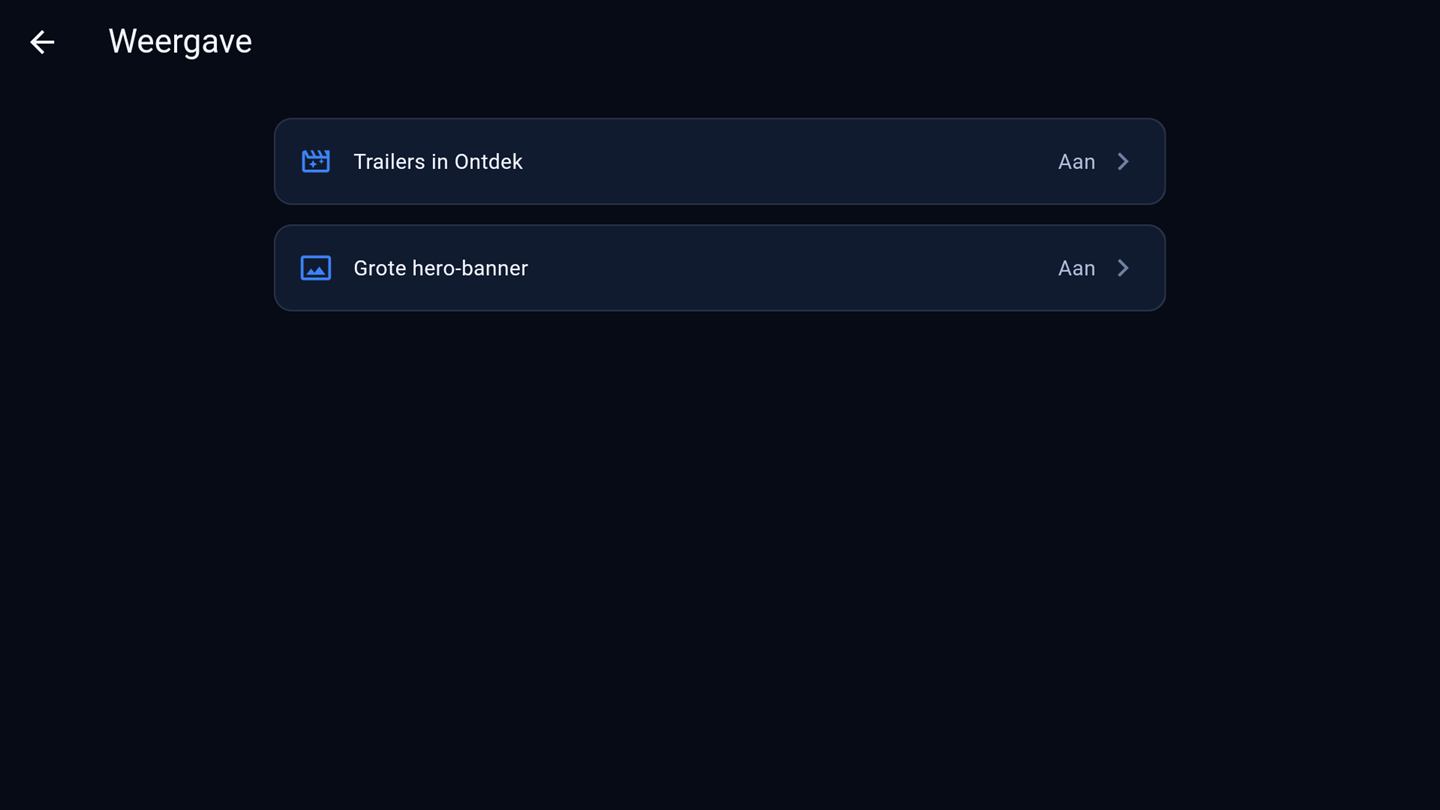
Two switches that shape the home screen: trailers in Discover, and the large hero banner.
Synchronisation
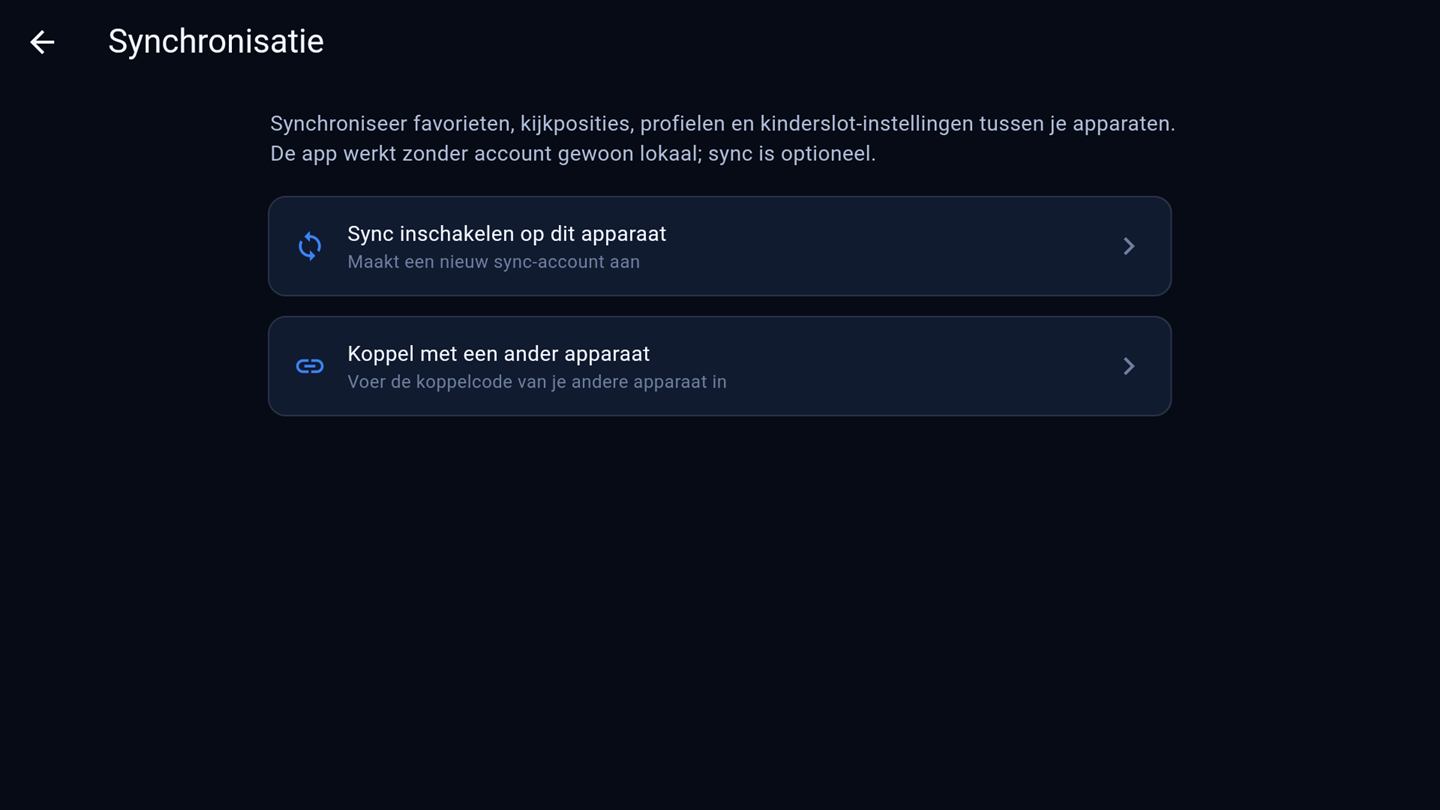
Optional sync between your devices via a pairing code. Without it the app simply works locally.
Recordings & parental lock
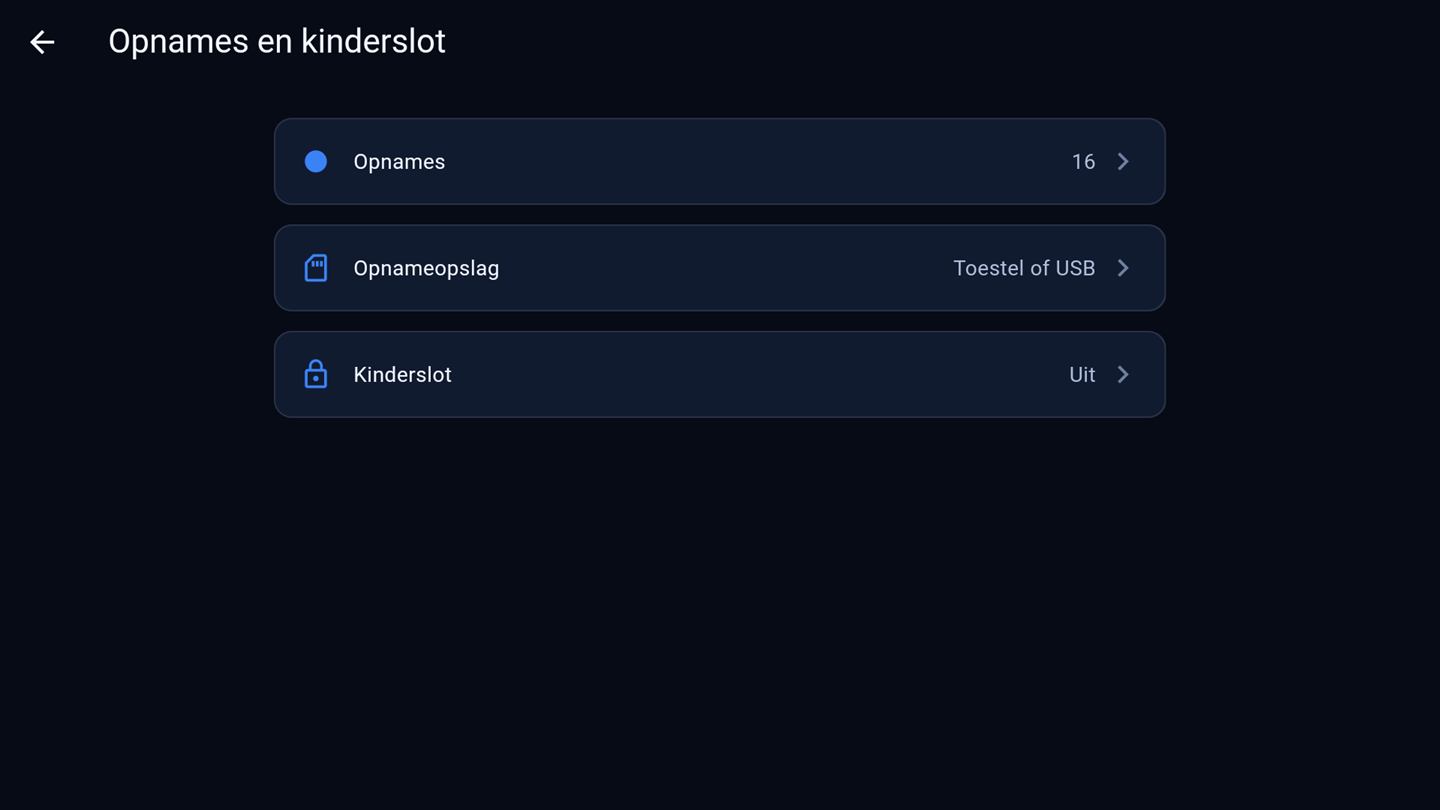
Your recordings, where they are stored (device or USB), and a PIN lock for shielded content.
Player & subtitles in detail
Set the subtitle size and style, and let Livaro download subtitles automatically
when a stream has none. The buffer slider trades memory for smoothness on unstable
connections, and the performance mode adapts playback to your device; automatic is
the right choice for almost everyone.
Display in detail
Two switches shape the home screen. Trailers in Discover plays previews while you
browse; turn it off for a quieter start screen. The large hero banner is the big
spotlight at the top; switch it off and rows move up.
Synchronisation in detail
Sync is optional: without an account the app simply works locally. Enable sync on
your first device to create a sync account, then choose Pair with another device
on the second one and enter the pairing code. From then on favourites, watch
positions, profiles and parental lock settings stay in step.
Recordings & parental lock in detail
Recordings lists everything you recorded and planned. Recording storage chooses
where they land: on the device itself or on a USB drive. The parental lock sets a
PIN code so shielded content stays closed without it.
Screenshots show royalty-free demo content (Blender Foundation films, CC-BY).